

Dashcam
Last updated: 01.11.2025 (XOS version 5.8)
As part of XOS 5.8, European XPENG owners have finally gained access to the built-in Dashcam feature.
This guide covers everything you need to know about setup, storage, and exporting your recordings.
According to the beta release notes, the feature is available in all European countries except Luxembourg, Portugal, Switzerland, and Austria.
Equipment requirements
- USB storage device (USB 3.0 or faster is recommended). USB 2.0 Hi-Speed devices should also be sufficient, as they have a theoretical maximum transfer rate of 60 MB/s.
- Data port:
- In the G9 and P7 MY23, only the USB-A port located beneath the center console supports data transfer. The USB-C port and the USB-A port near the rear-view mirror provide power only.
- In the G6, G9, and P7 MY24, both the USB-A and USB-C ports under the center console function as data ports.
- XPENG recommends avoiding external hard drives, as they often draw more power than the USB port can supply. It’s likely possible to use SSD or NVMe drives, but this has not been officially tested.
Tested USB drives
A SanDisk Ultra Dual Drive Go 1 TB (USB 3.2 Gen 1, up to 400 MB/s read speed) was tested with continuous Dashcam recording while simultaneously playing video and music without any issues. This drive can be used with both USB-A and USB-C ports, as it includes both connector types on opposite ends. With a capacity of 1 TB, it provides approximately 160 hours of recording when both the front and 360° cameras are active (around 6 GB per hour).
Link: https://www.proshop.dk/USB-Stick/SanDisk-Ultra-Dual-Drive-Go-Sort-1TB-USB-Stick/3209522
Another good option, which several owners have purchased, is the SanDisk Ultra Fit. It’s more affordable and physically smaller, but it only supports USB-A.
Link: https://www.proshop.dk/USB-Stick/SanDisk-Ultra-Fit-512GB-USB-Stick/2831242
Another solution, similar to what’s commonly used in traditional dashcams, is to use a high-endurance microSD card in a USB adapter.
We plan to test this combination in the near future.Link: https://www.proshop.dk/Hukommelseskort/SANDISK-High-Endurance-microSDSD-100MBs-256GB/2773176
ChatGPT said:
If you’re feeling adventurous, you can try your luck with the very cheap USB drives sold on sites like AliExpress — where a 2 TB drive costs less than €7. Below are links to the ones we purchased and are currently testing.
All of them could be formatted to NTFS on a computer, showed the full 2 TB capacity, and were recognized by the vehicle.
- https://www.aliexpress.com/item/1005009456001623.html – Purchased in the 2 TB version in both color variants (note the combined USB-A and USB-C connectors) — priced at around €5 each.
- https://www.aliexpress.com/item/1005007870534199.html – Purchased in the 2 TB version — priced at around €4.
- https://www.aliexpress.com/item/1005008857848976.html – Purchased in the 2 TB version in both color variants — priced at around €5 each.
This one is not recommended: https://www.aliexpress.com/item/1005009420512879.html – The metal casing is too thick, which means it doesn’t fit properly in some USB ports, including those on certain laptops and in the car.
Update: After using several of them for a while, none of them can really be recommended.
One by one, the cheap USB drives stopped working — the vehicle suddenly reported that no USB storage device was detected.
One likely issue with these low-cost drives is that their actual capacity doesn’t match the advertised size — for example, they may only hold 32 GB instead of 2 TB.
In such cases, the vehicle won’t start overwriting older recordings once the real storage limit is reached, because it still “believes” there is available space when in reality there isn’t.
We haven’t spent further time investigating these drives.
Note: An older 32 GB USB 2.0 drive was reported as too slow during recording (it’s unclear whether it was a Hi-Speed model). Our estimate is that the drive should support a minimum write speed of around 30 MB/s to keep up with the “Front + 360°” mode. If the vehicle reports that the drive is too slow, choose a USB 3.0 or newer device with a higher write speed.
Formatting the USB drive
Before using the Dashcam feature, the USB drive must be properly formatted.
This can be done directly from a computer — for example, on Windows, right-click the drive, select Format, and choose FAT16, FAT32, or NTFS as the file system.
All three formats are supported, though NTFS generally offers the best stability and performance for continuous recording.
Once formatted, insert the drive into the correct data port in the vehicle — it will be detected automatically and ready for use.
| File System | Supported | Max. File Size |
|---|---|---|
| FAT16 | Yes | 2 GB |
| FAT32 | Yes (Standard when formatting in the car) | 4 GB |
| NTFS | Yes (Recommended) | Practically unlimited |
| exFAT | No |
Tip: If you also want to store music or video on the same USB drive, format it manually to NTFS before use. This avoids the 4 GB maximum file size limitation found in FAT16 and FAT32.
How to activate the Dashcam
- Insert the USB drive.
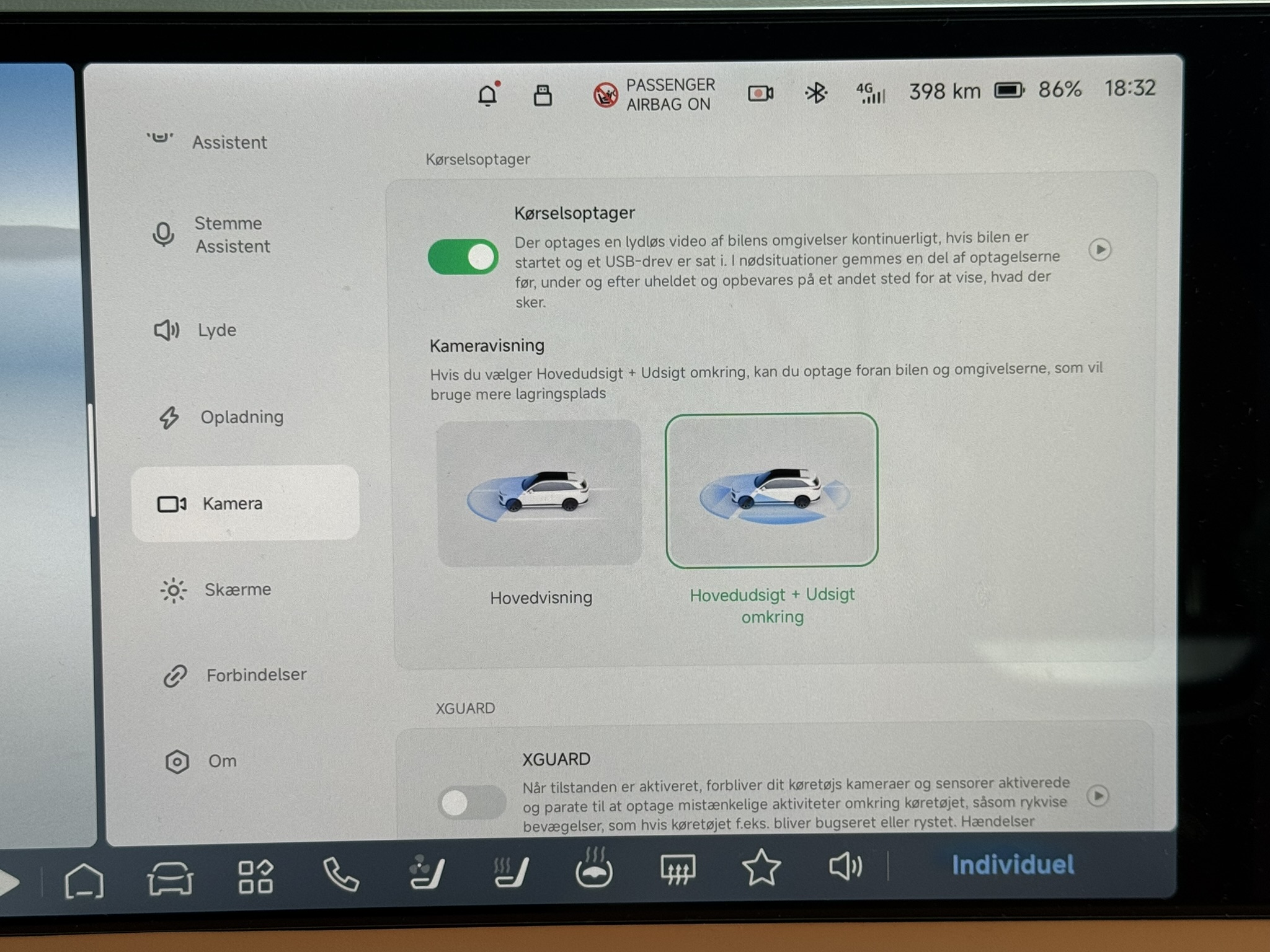
- Open the Camera menu in the infotainment system.
- Enable Driving recorder.
- Select the recording mode
- Front
- Front + 360° view
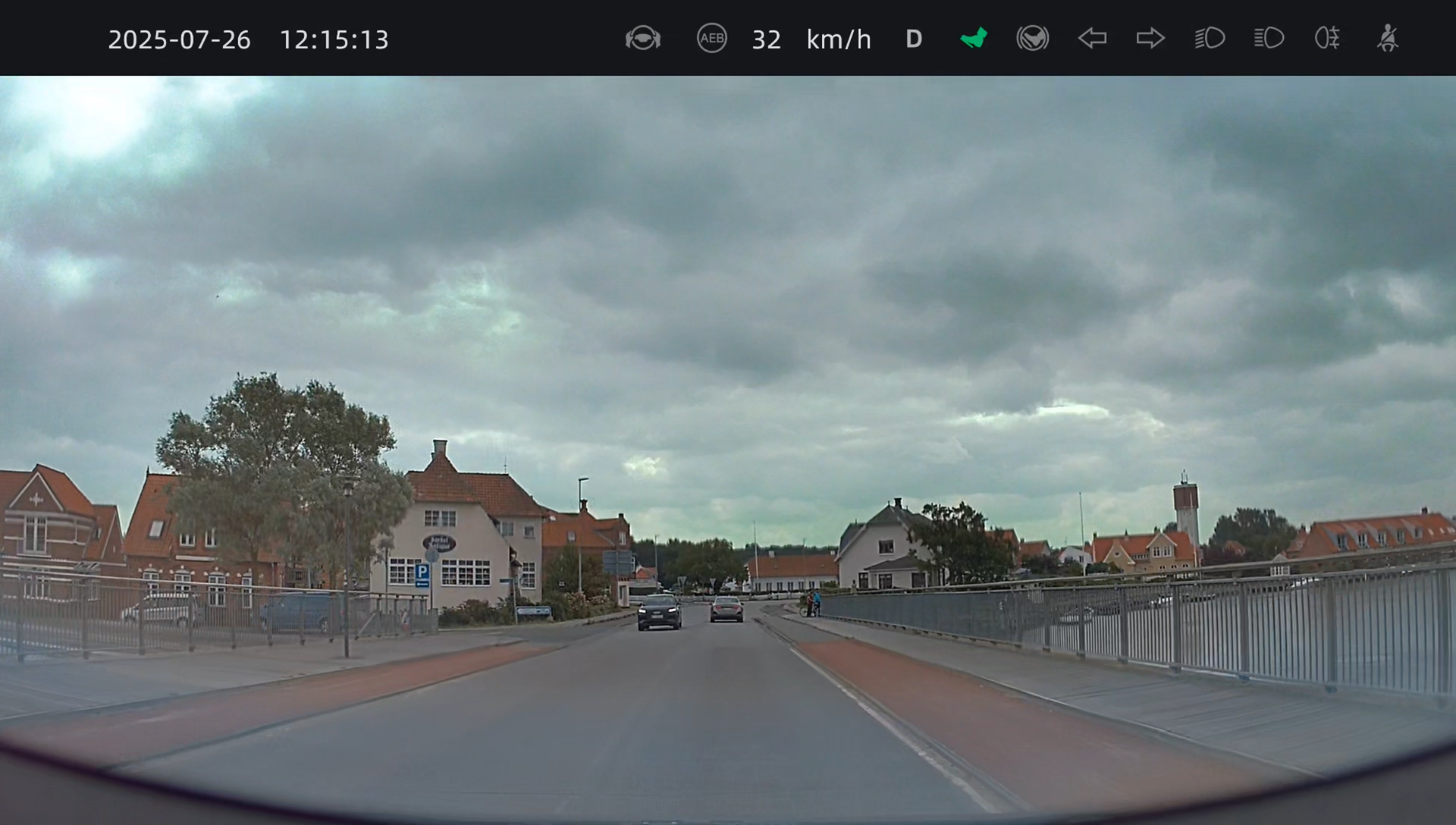
Front camera clips automatically display the date, time, speed, XPILOT status, and other information. Location data is not saved in the current version — this has been submitted as a feature request.
Folder structure on the USB drive
When the vehicle detects the drive, it automatically creates the following folders:
- XP_DCIM – Continuous dashcam recordings
- XP_EMER_DCIM – Locked or event-triggered clips (for example, AEB activations)
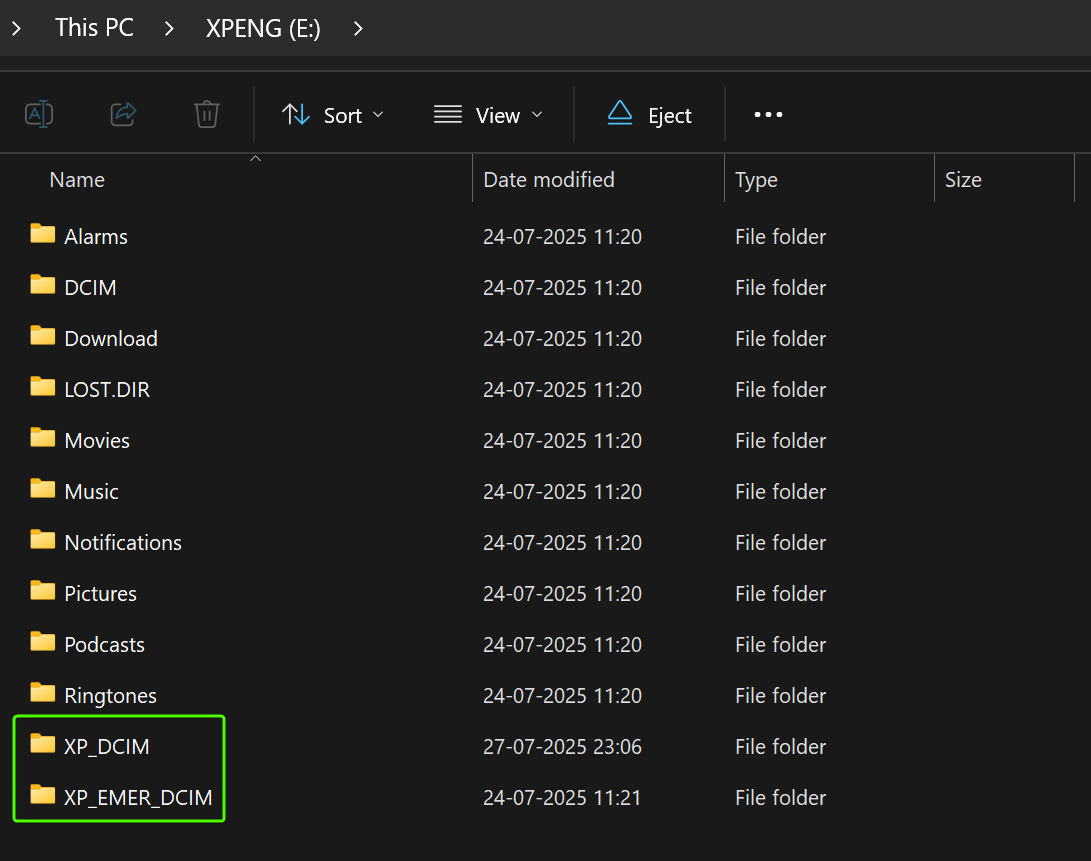
The other folders are also created by the vehicle and resemble a standard Android file structure.
Recording logic
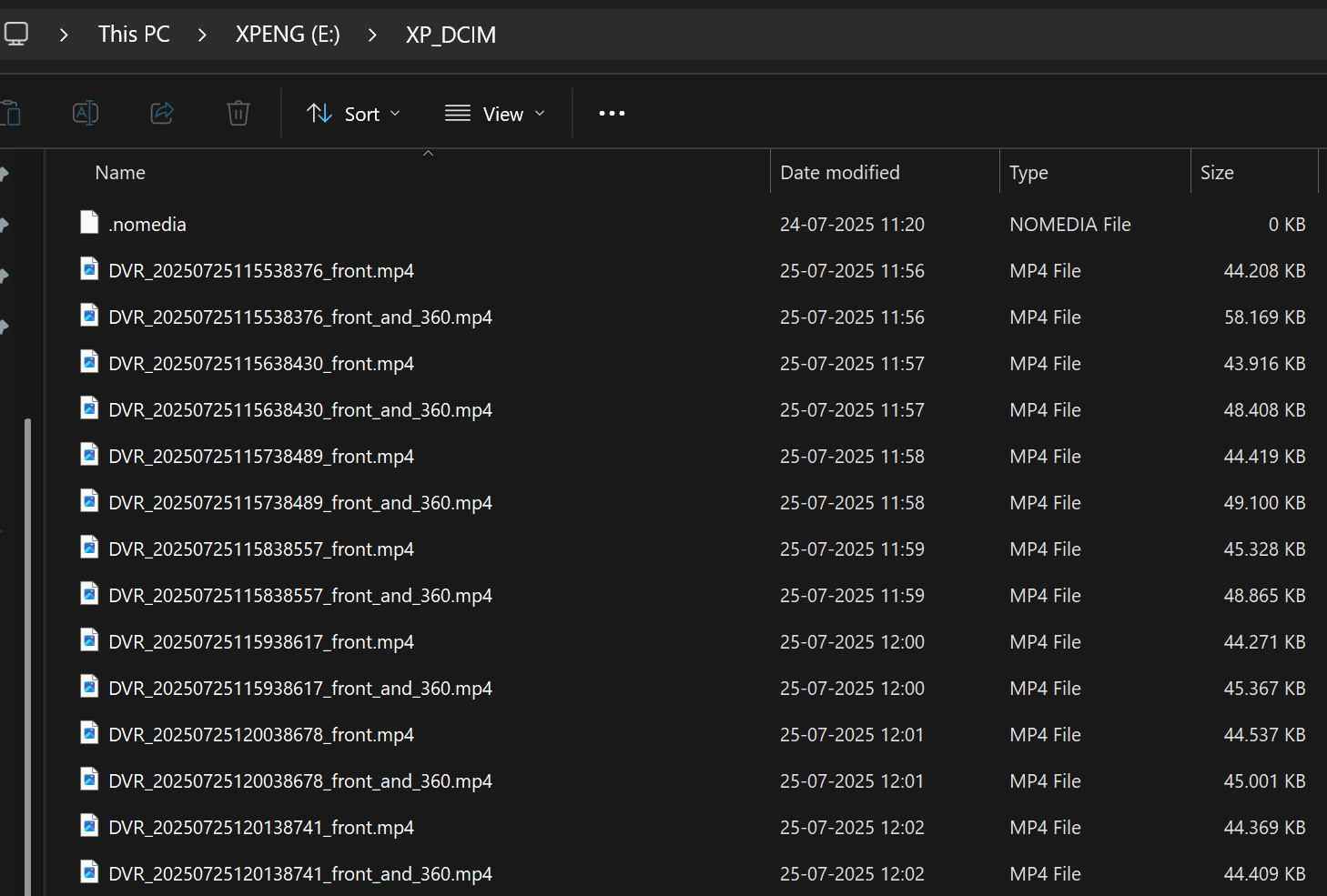
- The Dashcam saves one-minute clips in a continuous loop; the oldest clips are overwritten when storage space runs low.
- Marked or event-triggered clips (those stored in the XP_EMER_DCIM folder) are not overwritten.
- All clips are saved in MP4 format (1920 × 1080 – 30 fps).
- In 360° mode, the view temporarily switches to the rear-facing side camera when using the turn signals, and to a “helicopter” top-down view combined with a rear view when parking.

| Recording Type | Size per Minute |
| Front | ~40 MB |
| 360° view | ~50‑60 MB |
| Front + 360° view | ~100 MB (≈ 6 GB/time) |
Capacity vs. Recording Time
Estimated recording times are based on: Front camera only ≈ 2.4 GB per hour and Front + 360° view ≈ 6 GB per hour
| Capacity | Front | Front + 360° view |
| 32 GB | ~13 h | ~5 h |
| 64 GB | ~27 h | ~11 h |
| 128 GB | ~53 h | ~21 h |
| 256 GB | ~107 h | ~43 h |
| 512 GB | ~213 h (≈ 9 d) | ~85 h (≈ 3,5 d) |
| 1 TB | ~427 h (≈ 18 d) | ~171 h (≈ 7 d) |
| 2 TB | ~853 h (≈ 35 d) | ~341 h (≈ 14 d) |
| 4 TB | ~1.707 h (≈ 71 d) | ~683 h (≈ 28 d) |
XGUARD vs. Dashcam
XGUARD (previously known as Sentinel Mode) still uses the vehicle’s internal storage and is not affected by the USB drive settings.
Playback and Export
- Dashcam and XGUARD clips can only be viewed directly in the vehicle. They are not available for playback in the XPENG mobile app.
- Individual clips can be copied to your phone directly from the infotainment screen by following the in-car export guide in the recordings app.
- You can also remove the USB drive from the vehicle and review the Dashcam recordings on a computer.
Recording Examples
Below are various sample videos showing footage recorded with the new Dashcam feature.
Example of a front camera recording (XPENG G9 MY23):
Example of a 360° view recording (XPENG G9 MY23):
Example of a night-time front camera recording (XPENG G9 MY23):
Example of a night-time 360° view recording (XPENG G9 MY23):